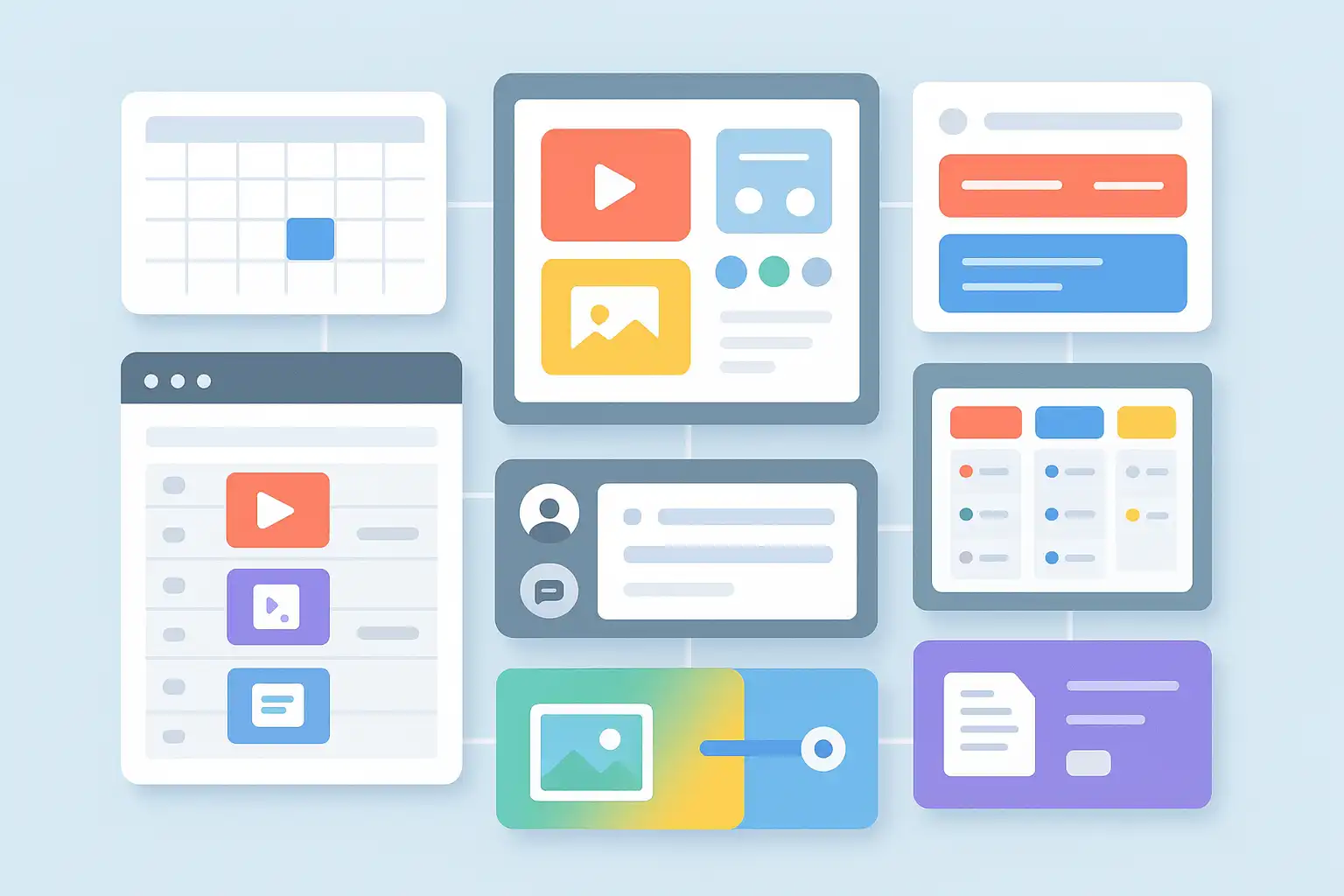
If you manage projects, run a blog, or work with a team, you likely face the constant challenge of collecting ideas, setting deadlines, and making sure nothing slips through the cracks. The content plan template in Notion offers a way to organize these moving parts in one connected workspace. Within a few minutes, you can arrange all your content ideas and publishing tasks, assign responsibilities, schedule launch dates, and track your progress—without having to juggle multiple tools or get lost in endless email threads.
Using a content plan template in Notion lets you see the big picture and the small details at the same time. You can quickly add new ideas, update your calendar, and keep everyone on the same page. Whether you plan weekly blog posts, social media campaigns, or complex content launches, this type of template brings clarity and flexibility to your workflow. In this article, we’ll show you how to get started, the features that matter, and why Notion is a smart choice for organizing your ideas and deadlines all in one place.
What is a Notion content plan template?
A Notion content plan template is a reusable layout in the Notion app that helps you manage content ideation, production, and publishing. It is not just a static document. Instead, it’s a dynamic dashboard with embedded databases, calendars, timelines, and customizable properties for each content piece.
With this template, each blog post, podcast, video, or tweet can become an entry in a table. You can track its status (idea, in progress, scheduled, published), assign it to a teammate, set a deadline, and attach reference materials. The beauty of working in Notion is that you can tailor the template for your needs—whether you produce articles every day or run quarterly campaigns.
By centralizing your content ideas, outlines, drafts, and deadlines, a Notion content plan template helps you avoid scattered files and forgotten tasks. It becomes your team’s single source of truth for all things content. For those seeking a hands-on overview of strategy, learning from resources like the content strategy can offer extra guidance alongside using Notion templates.

How does a Notion content plan template streamline organizing ideas and deadlines?
When you’re dealing with multiple channels—such as a blog, newsletter, LinkedIn, and Instagram—it’s easy for things to get messy. A Notion content plan template simplifies everything by gathering your ideas, assets, and schedules into one system. Here’s how it streamlines your workflow:
- Centralized workspace: Instead of managing separate spreadsheets, emails, and group chats, all your content planning happens in one Notion database.
- Custom properties: You can add fields for status (draft, review, published), deadlines, campaign tags, content type (post, video, email), and assign contributors. This makes filtering and sorting effortless.
- Flexible views: Quickly switch between table, Kanban board, calendar, or timeline views to see your work from different angles. For example, use calendar view to spot upcoming deadlines, or timeline view to visualize a week’s campaign rollout.
- Real-time updates: Whenever a teammate adds a new idea or reschedules a task, everyone instantly sees the change. There’s no confusion about what’s due when or who’s responsible for what.
- Comprehensive coverage: You can manage all types of content—social updates, email blasts, long-form articles, or even podcasts—in a unified structure. Each piece can link to detailed briefs, checklists, or creative assets.
Ultimately, the Notion content plan template saves time, keeps everyone aligned, and ensures all ideas and deadlines are visible, updated, and actionable.
What core features should a Notion content plan template include?
The effectiveness of your Notion content plan template depends on the features you include. Notion’s flexibility allows you to add or remove fields as your process changes, but some elements are considered best practice for most teams:
- Content database: Every content idea or asset gets its own row or card in a Notion database. This database is the backbone of your template.
- Status properties: Set up a field for content status—idea, in progress, under review, scheduled, published, or archived.
- Date and deadline fields: Assign due dates and, if needed, publication dates. This helps with time management and deadline tracking, which is often discussed in detail in guides like content planning explained.
- Content type and format: Use a drop-down or multi-select property for content formats—such as blog, video, infographic, or newsletter.
- Assignee or owner: Assign tasks to individuals for clear accountability.
- Views: Offer calendar, board, and timeline views for different uses. Boards are great for tracking workflow stages, while calendars are perfect for visualizing due dates.
- Linked resources: Attach outlines, briefs, draft documents, or creative files directly to each entry.
- Notes and comments: Allow space for brainstorming, feedback, or team discussions alongside each content piece.
These features help you build a template that adapts to your team’s needs, supports efficient workflows, and minimizes confusion.
How can you build a content plan template in Notion step by step?
Notion templates can seem intimidating at first, but building a content plan is straightforward if you follow these steps:
- Create a new Notion page. Give it a clear title, such as “Content Calendar” or “Marketing Plan.”
- Add a database. Choose “Table” or “Board” for a visual start. This will hold the main list of content entries.
- Set up properties. Add columns for title, status, due date, assigned person, content type, and notes. You can also include campaign or channel fields if needed.
- Add templates within the database. For each new content item, set up a default template with placeholders for briefs, checklists, and resource links.
- Create multiple views. At the top of the database, add calendar, timeline, and Kanban views. Each view helps you track progress in a way that suits your current needs.
- Invite collaborators. Share the page with your team, set permissions, and encourage everyone to update statuses and add new ideas.
- Customize further. As your process evolves, add more fields or reorganize views. Notion’s drag-and-drop interface makes this simple.
Many organizations also look for ways to automate parts of their workflow or track performance metrics over time. While Notion offers built-in tools, you can also integrate it with automation platforms to sync tasks or pull in analytics, which is a topic explored in resources such as AI digital content plan.
Why is Notion a popular choice for flexible content calendars?
Teams and individuals choose Notion for their content planning because of its unmatched flexibility and collaborative features. Unlike rigid spreadsheets or single-purpose tools, Notion adapts to both simple and complex workflows. Here are some reasons why Notion stands out:
- Customizable structure: You can add, remove, or rearrange database fields and views as your needs change, supporting both basic and advanced use cases.
- Multiple visualization options: Switch between calendar, table, and timeline formats instantly. This helps users adapt the workspace to their planning style.
- Collaboration support: Teams can comment, assign tasks, and share feedback directly within the template, reducing the need for external emails or chat apps.
- Real-time syncing: Updates are instantly visible to all collaborators, so everyone stays informed and aligned.
- Integration capabilities: You can connect Notion with other tools—such as automation platforms or analytics dashboards—to optimize your workflow.
- Document and database hybrid: Notion allows you to take notes, embed documents, and manage databases all in one place.
Whether you are new to content marketing or planning multi-channel campaigns, Notion’s flexibility helps teams of all sizes stay organized and agile.
How can a Notion content plan template improve content collaboration and tracking?
Collaboration is at the heart of high-performing content teams. A Notion content plan template provides a shared space where everyone can participate, contribute, and stay on top of project status. Here’s how it helps:
- Invite teammates directly: Add your writers, editors, designers, or project managers to the workspace with just a few clicks.
- Fine-grained permissions: Control who can edit, view, or comment on each part of your plan, making it possible to work with internal and external collaborators.
- Live updates: As team members make changes—such as updating a status or adding notes—everyone else sees them instantly, keeping communication open and transparent.
- Task dependencies: Visualize how one task moving forward or backward impacts the rest of your schedule. This is especially useful for big campaigns and launch coordination.
- Content briefs and checklists: Store details, instructions, and reference materials alongside each content item, so everyone knows what needs to be done before publishing.
By combining shared calendars, task assignments, and real-time communication, Notion helps teams collaborate even when they are distributed or working remotely. For those just starting out, a content strategy guide can help you understand how to align team roles and set up effective collaboration processes.
What are the benefits and challenges of using a Notion content plan template?
Before you move all your planning into Notion, it’s important to consider both the strengths and limitations of using this system. Here’s an overview:
| Benefits | Challenges |
|---|---|
|
|
Most teams find that the pros outweigh the cons, especially as Notion continues to improve and add integrations. Still, it’s wise to start small—test your template with a pilot team or a single project before rolling it out for your entire organization.

How to get the most out of your content plan template in Notion?
Once you’ve built your template and started using it, keep these best practices in mind:
- Review and update regularly: Make it a habit to check your content plan at least once a week, update statuses, and adjust deadlines as needed.
- Encourage team ownership: Assign a primary owner for each content item, but invite contributions from all relevant team members.
- Track what works: Use Notion’s database filters and custom views to spot bottlenecks, missed deadlines, or high-performing content types.
- Archive completed work: When a content piece is published or an idea is dropped, archive it to keep your workspace clutter-free.
- Iterate and improve: As your team grows and your strategy evolves, tweak your fields, templates, and views to keep everything relevant and efficient.
Understanding the content plan template in Notion: Your Questions Answered
How do I organize multiple content calendars in Notion?
Notion allows you to create several databases or pages for different channels, such as “Blog Calendar” and “Social Media Schedule.” You can even link related entries between databases for cross-channel planning and to avoid duplication of effort.
Can I track content performance with my Notion content plan template?
While Notion does not have built-in analytics, you can add properties for tracking metrics like page views or engagement. For deeper analytics, consider linking your Notion database to other platforms through integration tools.
How do I manage content feedback and approval in the template?
Add a feedback/approval field to your database. Use comments and mentions within each entry for detailed discussion. You can also build a workflow board with columns like “Draft,” “Review,” and “Approved” for transparent tracking of the approval process.
Is it possible to automate reminders within Notion?
Yes. You can set reminders and deadlines with Notion’s built-in “reminder” function or connect Notion to external tools for more advanced automation, such as sending scheduled notifications or syncing with other project management apps.
By following these steps and tips, your team can transform scattered ideas and looming deadlines into a smooth, collaborative content workflow—all with a single content plan template in Notion.

Related Posts