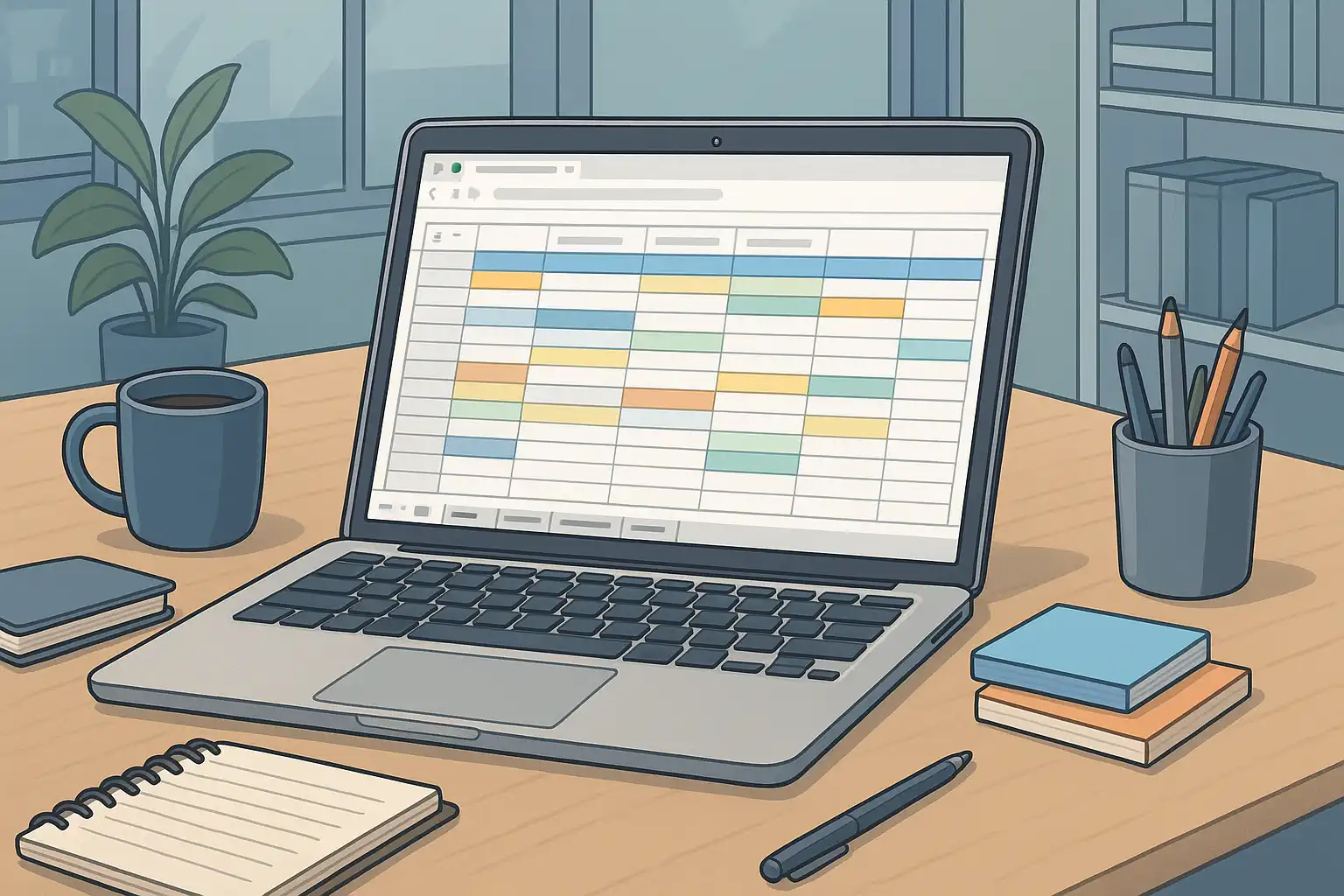
If you are looking for a clear, reliable way to manage your content workflow, setting up a content plan template in Google Sheets is a smart, flexible solution. With just a few simple steps, you can create a weekly publishing schedule that keeps your team organized, on track, and ready to deliver quality work every time. In this guide, you will learn exactly how to structure, customize, and optimize your Google Sheets content calendar for weekly publishing.
Why use Google Sheets for your weekly content planning?
Google Sheets is a popular collaborative tool for managing content pipelines thanks to its accessibility, flexibility, and ease of use. Unlike many specialized software tools, Google Sheets lets you design your own content plan template, control permissions, and collaborate in real time. Anyone on your team can access or update the schedule from anywhere, eliminating bottlenecks and ensuring everyone stays on the same page.
In many organizations, using Google Sheets as a weekly content calendar reduces confusion, centralizes feedback, and makes your publishing workflow transparent. Many find that it speeds up approvals and lets teams spot bottlenecks before they slow the process. That’s why Google Sheets is a top choice for many marketers and editors who want a low-barrier, high-impact solution.

What are the essential columns for a weekly content plan in Google Sheets?
To set up a robust weekly calendar, you first need to decide which columns and data are essential. A clear structure will help your team track every part of the content lifecycle—from ideas to published posts. Let’s break down the must-have columns for your content plan template in Google Sheets:
- Publish date: The scheduled publication day. This drives the calendar view and lets you sort or filter by week.
- Channel: Where the content will go (e.g., Blog, YouTube, LinkedIn). Standardizing this via dropdown keeps your data consistent.
- Content title/hook: A working title or the post’s key message. This makes it easy to scan the sheet for themes or status.
- Target keyword/theme: The primary SEO phrase or main topic.
- Funnel stage: Is the content meant for awareness, consideration, or conversion? Dropdowns make this quick to tag and report.
- Owner: Who is responsible for the asset?
- Status: Current progress—such as Idea, Draft, In Review, Scheduled, or Published. Dropdowns help avoid typos.
- Asset links: URLs to drafts, published pieces, or media assets. These save time for everyone on the team.
Some teams add extra columns like “Notes,” “Word Count,” or “Performance,” but starting simple helps everyone learn the workflow. You can always add more data fields later as your needs evolve.
How do you set up your weekly content calendar in Google Sheets?
Let’s walk through step-by-step how to create a functional weekly content calendar in Google Sheets:
- Create a new Sheet: Open Google Sheets and start with a fresh file. Name your document something clear, like “Weekly Content Plan.”
- Set up your columns: Use the list above to label the columns in your first row. Freeze this header row so it stays visible as you scroll.
- Add data validation: For columns like “Channel,” “Funnel stage,” and “Status,” set up dropdown lists. This keeps input consistent and enables quick filtering.
- Color-code with conditional formatting: Highlight overdue tasks in red, content due this week in bold, and published posts in gray. Visual cues make the sheet easy to scan.
- Create multiple tabs: Separate tabs for “Roadmap” (quarterly overview), “Content Calendar” (weekly), and “Performance” (for metrics) help teams focus and avoid clutter.
- Input your ideas and schedule: Add your content ideas, assign owners, and choose publish dates. Use filters to see only what’s relevant that week.
- Share and collaborate: Set permissions so team members can edit or comment as needed. Keep everyone in the loop for deadlines and reviews.
For those getting started with strategic content work, referencing an in-depth content strategy can help make the weekly planning more purposeful and aligned with business goals.
How can you organize and schedule content to ensure consistent weekly publishing?
Consistency is key to building an engaged audience and maintaining momentum on your channels. That’s why structuring your Google Sheets for weekly publishing is essential. Here are proven methods to keep your schedule running smoothly:
- Plan in advance: Fill out your content plan template in Google Sheets at least a month ahead, but focus on the upcoming week for action items.
- Use filters or filter views: Writers can filter by tasks needing drafting, editors can filter by review status, and managers can filter by content channel. Custom filter views make it easy for each person to focus only on their piece of the workflow.
- Standardize with dropdowns: Data validation ensures you’re not chasing typos or mismatched status updates.
- Highlight priorities: Visual formatting can make urgent posts stand out, so no deadline is missed.
- Hold weekly check-ins: Review the sheet together, adjust for any blockers, and celebrate published wins.
- Archive completed work: Move published content to a separate tab or mark it clearly in the main table to keep focus on what still needs attention.
- Monitor capacity: By tracking owner workload in Google Sheets, you can spot when someone is overloaded and rebalance the assignments.
If you want a deeper foundation in the strategy behind these choices, reading content planning explained can provide additional insights into aligning tasks with your broader goals.
What Google Sheets features can optimize your weekly publishing workflow?
Once your template is in place, Google Sheets offers several powerful features to enhance and automate content management. Here are some of the most effective:
- Formula-powered rows: Design a “perfect row” that combines formulas, dropdowns, and formatting. Duplicate it for each new content item to ensure consistency.
- Real-time status tracking: Use formulas like
=IF(TODAY()>A2,"Overdue","On track")to flag overdue content, and=TEXT(A2,"ddd, mmm d")to display user-friendly publish dates. - Conditional formatting: Automatically color-code cells or rows based on status. This makes it easy to spot bottlenecks or completed tasks at a glance.
- Pivot tables: Summarize content by channel, owner, or date to see trends and gaps. For example, quickly see how many posts are scheduled per channel or how the publishing pace has changed over months.
- Separate tabs for campaigns: Filtered views and dedicated tabs for each campaign or content stream help teams focus without clutter.
- Integration with AI tools: Automate status updates, enrich content ideas, and backfill performance data with AI-powered apps. This minimizes manual updates and ensures your plan stays current.
Leveraging these advanced features can help you move from a manual setup to a more automated, scalable process. If you’re interested in exploring how artificial intelligence can reshape your workflow, the AI digital content plan post offers practical steps for next-level content management.

How can you automate or streamline a Google Sheets content calendar?
Manual updates work for small teams, but as your publishing needs grow, automation becomes essential. Google Sheets integrates easily with a range of automation tools and scripts:
- Google Apps Script: Write simple scripts to send reminder emails, flag overdue posts, or even copy completed content to an archive tab automatically.
- Zapier and Make (formerly Integromat): These platforms connect Google Sheets to your CMS, project management, or messaging apps. For example, auto-send new assignments to Slack or create Trello cards for every new draft assigned.
- Custom Notifications: Set up conditional notifications for when statuses change (e.g., from “Draft” to “Review”), so team members are instantly alerted.
- Template duplication: Automate weekly sheet rollovers by copying and clearing previous weeks in one click.
For organizations beginning to formalize their processes, following an approachable content strategy guide can help ensure the automation aligns with clear business objectives and content standards.
What are some common pitfalls and best practices in Google Sheets content management?
While Google Sheets offers flexibility, there are typical mistakes that reduce its effectiveness. Here’s how to avoid them and make your weekly publishing plan reliable:
- Overcomplicating your template: Start with essential columns only. Too many fields make updates slow and error-prone.
- Neglecting data validation: Dropdowns and pre-set choices ensure everyone uses the same terminology and tracking stays consistent.
- Lack of review cadence: Set a recurring meeting or reminder to check the calendar weekly. This keeps projects moving and addresses issues early.
- Not archiving old content: Move completed work to another tab to declutter the main view.
- Ignoring role-specific filter views: Custom views make the calendar more useful and reduce confusion, especially as teams grow.
Building these best practices into your sheet from the start can make your content calendar a source of truth for the entire team. As you scale your publishing, these habits ensure your content plan template in Google Sheets stays an asset, not a chore.
How do you keep your team engaged and accountable with a Google Sheets calendar?
The most successful content calendars are living documents, not static spreadsheets. To keep your team invested, make the process collaborative:
- Empower owners: Assign a clear owner to every task so everyone knows who is responsible for moving each piece forward.
- Give editors and managers custom filter views so they can focus on reviewing or scheduling without distraction.
- Allow feedback and comments directly in the Sheet. Google Sheets lets you tag people, start discussions, and document decisions alongside the plan.
- Review regularly: Use your weekly standup to check the Sheet, celebrate published wins, and adjust for any blockers or shifting priorities.
- Keep permissions up-to-date so the right people always have access (edit or view-only) based on their role.
Your essential Q&A for the content plan template in Google Sheets
Below are focused answers to key questions that English readers often ask about building a content plan template in Google Sheets for weekly publishing.
What columns must I include when setting up my content plan template in Google Sheets for weekly publishing?
Include the following columns: Publish date, Channel, Content title/hook, Target keyword or theme, Funnel stage, Owner, Status, and Asset links. Data validation using dropdowns in columns like Channel, Funnel stage, and Status is crucial for consistency and reliable reporting. This keeps your sheet organized and maximizes clarity for all team members.
How do I organize and schedule content for weekly publishing in Google Sheets?
Start by creating tabs such as a quarterly Roadmap, weekly Content Calendar, and a Performance overview. Standardize entries with data validation dropdowns, and use conditional formatting to highlight overdue tasks or published posts. Employ filters or custom filter views tailored for different roles, so everyone sees only the information relevant to them. These steps make it much easier to manage deadlines and maintain a steady publishing rhythm.
Which Google Sheets formulas and features help manage a weekly content schedule?
Helpful formulas include =IF(TODAY()>A2,"Overdue","On track") to flag late content and =TEXT(A2,"ddd, mmm d") for clear date formatting. Use pivot tables to monitor content by channel or month, and set up separate tabs with filtered views for specific campaigns. Combine these with conditional formatting and data validation for real-time clarity and reduced manual work.
Can I automate parts of my content calendar in Google Sheets?
Yes—automation tools like Google Apps Script, Zapier, or Make can handle repetitive tasks such as sending reminders, updating statuses, or archiving published content. Integrating AI-powered agents can also streamline workflows by keeping statuses updated, enriching content ideas, and backfilling performance data. Automation lets your team focus on creativity and quality, not just data entry.

Related Posts