
Facebook Page Admins: How to Add, Manage & Secure Multiple Admins
summary(TL;DR)
Managing who controls your business’s Facebook Page can make your online presence safer, smoother, and more productive. By knowing how to properly add, organize, and secure multiple admins, you can delegate tasks with confidence, reduce risks, and ensure your team collaborates efficiently. Following a few clear steps makes this process both simple and quick, supporting the growth and safety of your brand online.
Key Takeaways
- Understanding Facebook’s six main page roles is crucial for secure and efficient teamwork.
- Assigning roles responsibly boosts collaboration and minimizes risks for your page.
- Adding, editing, and removing admins is fast, but should be done thoughtfully with trust and clarity.
- Regular reviews and strong security habits (like two-factor authentication) safeguard your business.
- Avoid common pitfalls like giving too many full-access roles or failing to update permissions after staff changes.
What Are Facebook Page Roles and Why Do They Matter?
The effectiveness and safety of your business’s Facebook Page depend heavily on how you manage admin roles and permissions. Instead of one person handling all tasks, Facebook allows you to assign specific roles to different team members—each with defined powers and limits. This structure lets your page operations run more smoothly, as different people focus on their strongest skills, and sensitive page controls are kept in trusted hands.
Overview of the Six Main Facebook Page Roles
Facebook offers six key roles for business page management:
- Admin: The highest authority—can manage all settings, assign or remove roles, and oversee every aspect of the page.
- Editor: Can create, edit, and delete posts or ads, but cannot manage page roles or the most critical settings.
- Moderator: Focuses on conversations. Handles messaging, comments, and limited ad management, but cannot alter main settings.
- Advertiser: Creates ads and views analytics but cannot publish content or assign roles.
- Analyst: Has read-only access to insights and page performance data.
- Jobs Manager: Manages and posts job listings, with some ad-running abilities.
What Each Role Can and Cannot Do
Each role is carefully designed to offer what a specific team member needs—nothing more, nothing less. For example, only admins can reset key settings or add new admins, protecting your page from accidental or unwanted changes. Editors are perfect for content creation and day-to-day publishing, while moderators keep community conversations healthy. Advertisers and analysts handle your marketing and data review, and the jobs manager ensures recruitment is handled with care. This division helps keep your business’s workflows clear and your information safe.
Why Thoughtful Role Assignment Improves Security and Collaboration
Careful role assignment does more than organize tasks; it protects your brand. With the wrong people in powerful positions, your Facebook page could be at risk. Always appoint admins who are experienced and trustworthy. It’s wise to regularly check who holds each role and to adjust quickly if someone’s team status changes. When the right people have the right access, you boost both teamwork and security, making your page stronger and more resilient.
How Do You Add and Manage Multiple Admins on Your Facebook Page?
Adding new admins to your page or updating existing ones is fairly straightforward, whether you use Facebook’s core interface or Business Manager tools. Following a set series of actions ensures clarity, control, and safety as your team grows.
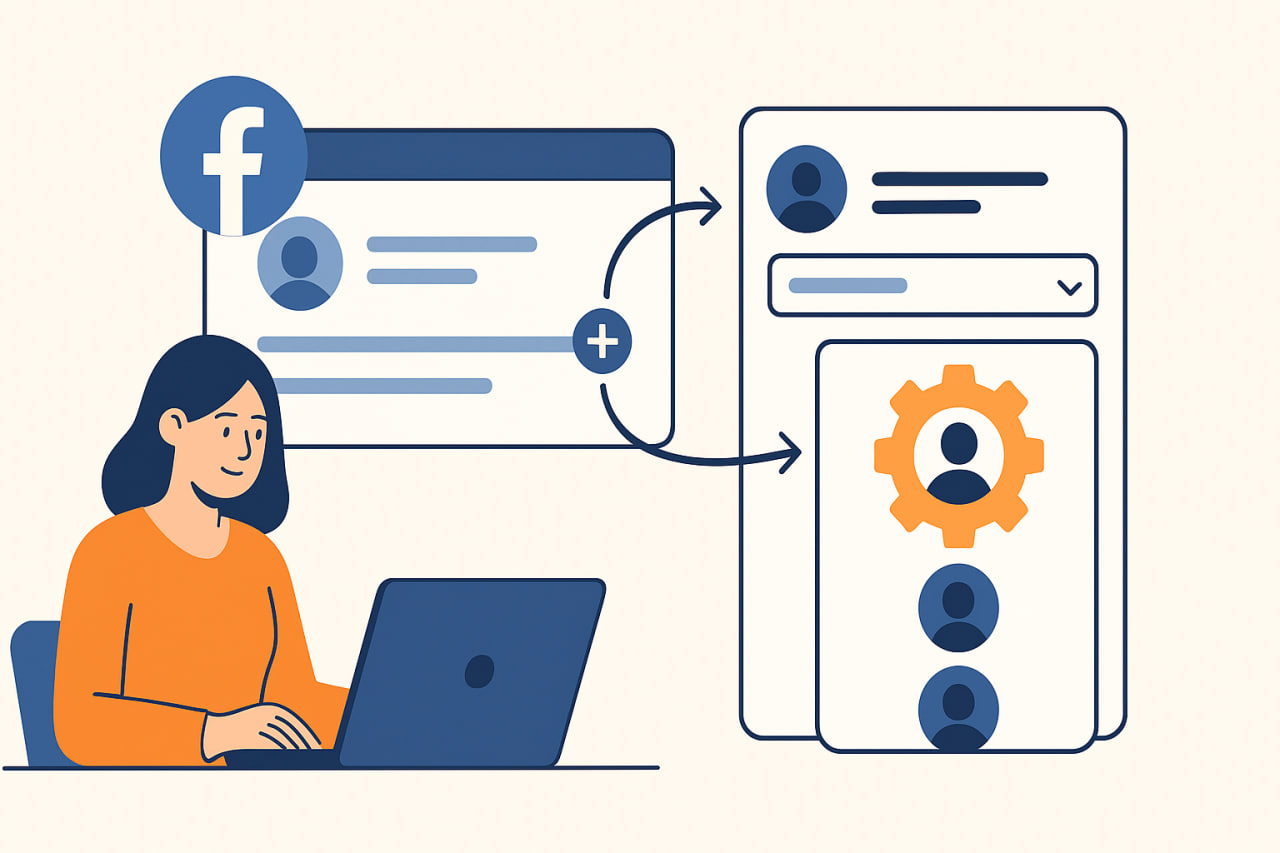
Step-by-Step Guide: Adding Admins
- Open Your Page Settings: Click on “Manage” (or “Settings”) at the top of your Facebook page. This area gives you full access to page controls.
- Find ‘Page Access’ or ‘Page Roles’: Look for the section labeled “Page Access” (on new layouts) or “Page Roles” (on older ones).
- Add a New Admin: Click “Add New,” then enter the name or email of the person you wish to add. If you can’t find them, make sure they’ve “liked” your page—this is a common mistake and easily fixed.
- Choose Their Role: Select one of the six roles described above based on the person’s job on your team.
- Secure with Your Password: Confirm your choice by entering your own Facebook password. This adds an extra layer of security.
- For Business Manager Users: If you manage your page via Facebook Business Suite or Business Manager, follow similar steps but navigate through the “People” or “Partners” area within Business Settings and ensure you have admin rights in the Business Manager first.
Frequent Mistake: Invites sometimes don’t work because the intended admin hasn’t liked the page or is not already connected. If this happens, double-check both, or send the invitation through Business Manager.
Editing and Removing Roles
To update or remove someone’s role:
- Return to the “Page Access” or “Page Roles” section.
- Find the person’s name and click “Edit” to change their role or “Remove” to delete their access.
- Review your admin list regularly, especially after team changes or if you spot unfamiliar names.
Instructions for Mobile and Desktop
On both desktop and mobile, the process is very similar:
- Open your Facebook app or web page and head to your business page.
- Tap “Settings,” then select “Page Roles” (sometimes found under “Page Access” on newer versions).
- Fill in the new admin’s details, select the right role, and confirm the change with your password.
Always ensure a secure, private internet connection. Regularly check “People and Other Pages” to see everyone with access.
What Are Best Practices for Page Security and Common Admin Mistakes?
Assigning roles is just the first step—protecting your page long-term requires strong security habits and routine oversight.
Tips for Choosing and Reviewing Admins
- Pick admins you trust 100%, as they hold maximum power over your page’s settings and controls.
- Clarify each team member’s daily tasks and make sure everyone knows their boundaries from the start.
- Frequently review your admin and role list, especially after any team member leaves or changes jobs.
Common Pitfalls and Simple Solutions
- Too Many Full-Access Admins:
Appoint only those who truly need all-access status. Use specific roles like Editor or Moderator to limit unnecessary risks. - Invite Issues:
If a team member cannot accept an admin invitation, check if they’ve liked your page or add them using Business Manager. Double-check they are connected to your network. - Outdated Permissions:
Remove access for anyone who no longer needs it, or after staff changes, to prevent lingering security holes.
Maintaining Security and Admin Monitoring
Good habits make all the difference:
- Require that every admin use a strong, unique password and activate two-factor authentication.
- Look out for suspicious admin activity in your settings log—investigate anything unusual.
- Authorize third-party tools only when absolutely necessary and always understand exactly what access they have.
Protecting your page is worth the extra minute it takes to double-check these settings regularly.
Conclusion
Becoming skilled at adding, managing, and securing multiple Facebook page admins lets you share responsibilities while keeping your business safe and organized. Try giving a trusted teammate the Editor or Moderator role today—you’ll see teamwork and efficiency improve. Review your admin list often to make sure access remains accurate and secure. If you face challenges or find new ways to streamline the process, reach out and share your insights. Your experiences can help others create strong, resilient business communities on Facebook.
FAQ
How many admins can my Facebook Page have?
There is no strict upper limit to the number of admins your Facebook Page can have, but it’s best to keep the admin count small for security reasons. Only assign the Admin role to people you trust with full control over your page.
What should I do if an admin leaves my company?
Immediately remove their access from the “Page Access” or “Page Roles” section in your settings. This protects your page from unauthorized changes and helps keep your business information secure.

Related Posts